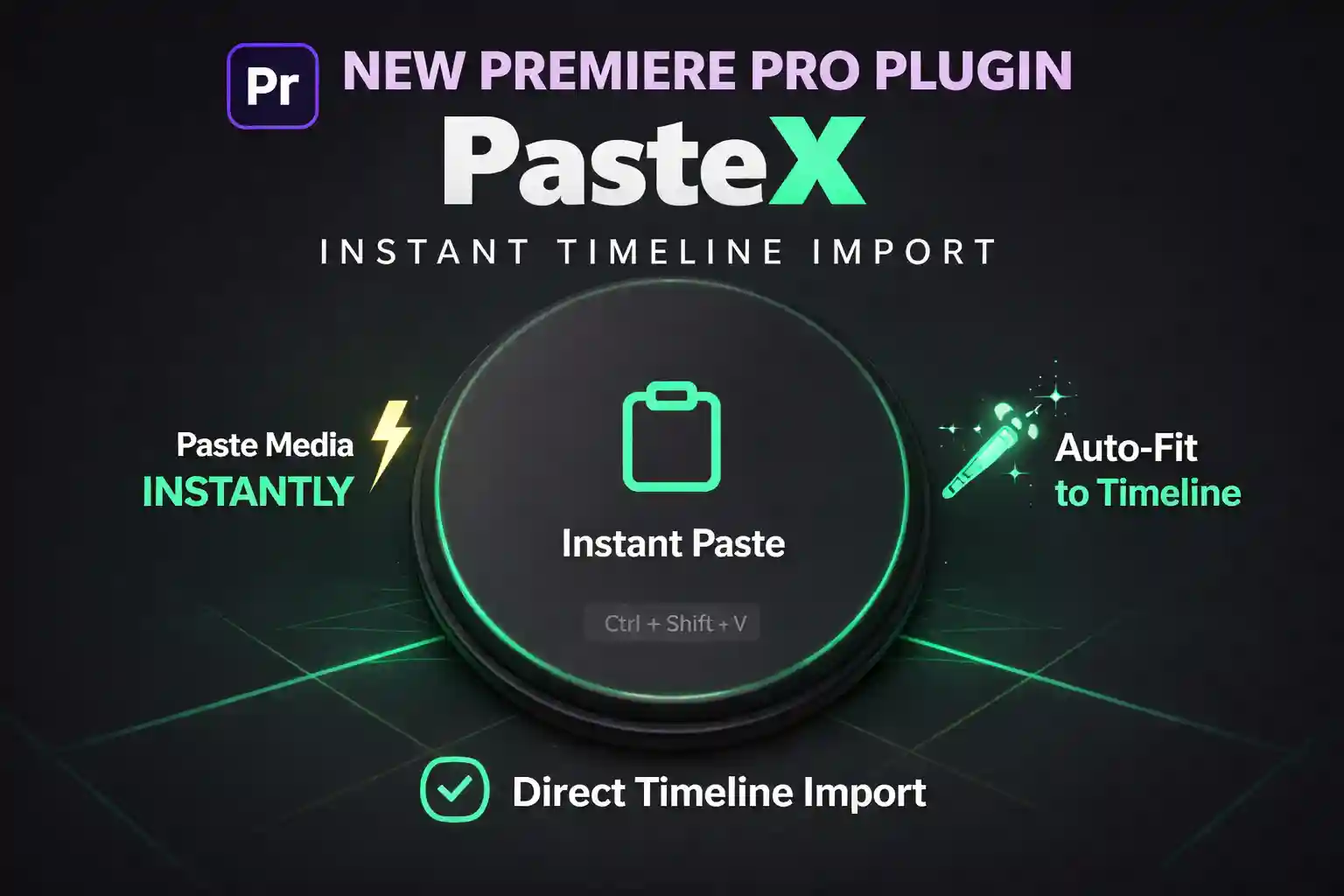
🚀 How to Copy Paste Images Directly in Premiere Pro (2026 Guide)
Updated: April 2026 • 5 Min Read
Table of Contents
🎯 Why Copy Paste Images in Premiere Pro Matters
Traditional workflows waste time. Especially for YouTube videos, Instagram Reels, and Shorts, the download-then-import method kills momentum.
👉 Old Workflow: Download → Import → Drag → Resize (Slow)
👉 Modern Workflow: Copy → Paste (10x Faster)
🧠 Can You Copy Paste Images Directly?
By default, ❌ Premiere Pro does NOT support direct image pasting. However, with the EZEdit PasteX (Copy Pasta Plugin), you can bypass this limitation entirely.
🛠️ Step-by-Step Guide
- Copy: Right click any image in your browser or desktop and select "Copy Image."
- Paste: Inside Premiere Pro, press
Ctrl + Shift + V. - Done: The image appears instantly on your timeline!

❌ Without Plugin vs ✅ With Copy Pasta Plugin
| Without PasteX | With EZEdit PasteX |
|---|---|
| Download required | No download needed |
| Manual import | One-click paste |
| Slow/Clunky | Instant workflow |
Ready to Upgrade Your Workflow?
🚀 Get EZEdit PasteX Now🔥 FAQ (For SEO Rich Snippets)
Q1: Can you paste images directly into Premiere Pro?
No, Premiere Pro doesn't support direct image paste by default. You need a plugin like EZEdit PasteX to enable clipboard-to-timeline functionality.
Q2: What is the best copy paste plugin for Premiere Pro?
EZEdit PasteX is one of the best plugins for a clipboard-to-timeline workflow, offering instant imports without manual downloading.
Q3: How to import images faster in Premiere Pro?
The fastest way is to use a clipboard plugin like PasteX to paste images instantly from your browser or desktop without downloading the file first.
copy paste images premiere pro
copy paste plugin premiere pro
ezedit pastex
copy pasta plugin
Post Views: 9