
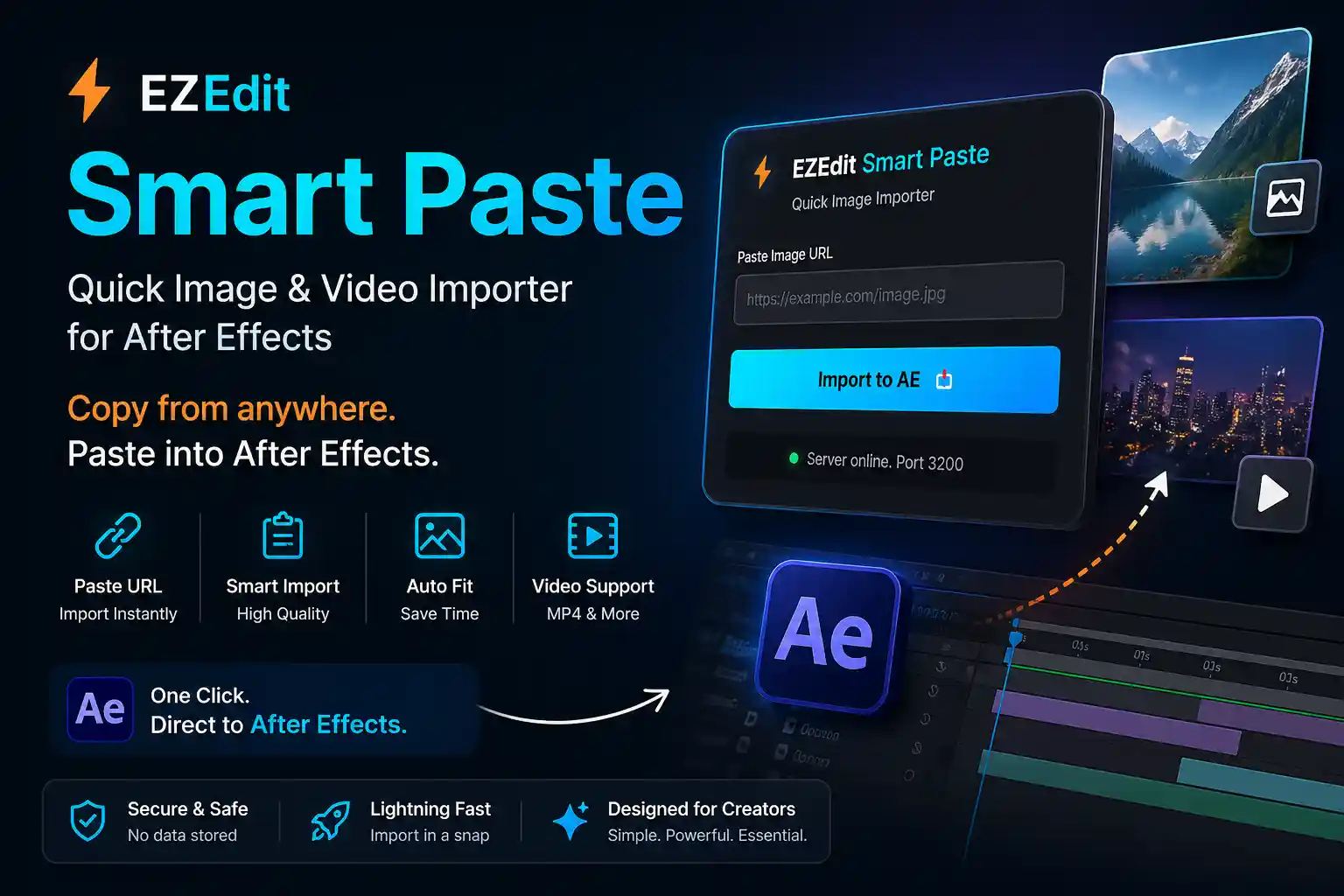
🔥 Why EZEdit Smart Paste?
If you regularly use images, graphics, or stock footage in your projects, you already know the hassle:
Download → Save → Import → Adjust
With EZEdit Smart Paste, you can skip all of that.
👉 Just paste the URL or send directly from browser
👉 Instantly import into After Effects
👉 Start editing without interruptions
⚡ Key Features
- ✅ Direct Image Import from URL
Paste any image link and import it instantly in high quality - ✅ No Manual Download Required
Eliminate extra steps and speed up your workflow - ✅ One-Click Import to After Effects
Clean, simple interface with instant results - ✅ Auto Scale & Fit to Composition
Imported assets are automatically adjusted - ✅ Video Import Support (MP4 & Direct Links)
Quickly bring video assets into your project - ✅ Lightweight & Fast Performance
Optimized for smooth editing experience
💼 Who Is This For?
- 🎬 Video Editors
- 🎨 Motion Designers
- 📱 Content Creators & YouTubers
- 🧑💻 Freelancers & Agencies
🚀 Benefits
- ⏱️ Save Hours Every Week by removing manual download steps
- ⚡ Faster Editing Workflow for professional projects
- 📂 No File Clutter on your system
- 🎯 Focus on Creativity, not file management
- 💰 Increase Productivity & Earnings with faster delivery
🛠️ System Requirements
- Adobe After Effects CC 2019 or later
- Windows / macOS
- Internet connection required
📦 What You Get
- EZEdit Smart Paste Plugin Files
- Installation Guide
- Lifetime access (based on plan)
- Future updates (if included)
💬 Final Words
Stop wasting time on repetitive tasks.
EZEdit Smart Paste gives you a smarter way to work inside After Effects.
👉 Copy from anywhere. Paste into After Effects. Done.
🛠️ How to Install EZEdit Smart Paste Plugin (After Effects)
📦 Step 1: Download & Extract
- Plugin ZIP file download karo
- Right click → Extract Here
- Folder milega:
EZEdit Smart Paste
📂 Step 2: Copy to Extensions Folder
🪟 Windows:
C:\Program Files (x86)\Common Files\Adobe\CEP\extensions🍎 Mac:
/Library/Application Support/Adobe/CEP/extensions👉 Yaha plugin folder paste karo
⚙️ Step 3: Enable Scripting (Important)
Open Adobe After Effects
Go to:
Edit → Preferences → Scripting & Expressions
✔ Enable:
- ✅ Allow Scripts to Write Files
- ✅ Allow Scripts to Access Network
🚀 Step 4: Open Plugin
- Go to: Window → Extensions → EZEdit Smart Paste
- Plugin panel open ho jayega 🎉
🌐 How to Install Chrome Extension (Recommended)
📥 Step 1: Open Extensions Page
Open Google Chrome and go to:
chrome://extensions/⚙️ Step 2: Enable Developer Mode
- Top right me Developer Mode ON karo
📂 Step 3: Load Extension
- Click “Load Unpacked”
- Apna extension folder select karo
✅ Step 4: Done!
- Extension install ho gaya 🎉
- Browser me icon show hoga
🔗 How to Use Extension
- Browser me koi image open karo
- Right click → Send to After Effects
- Direct AE me import ho jayega ⚡
⚠️ Common Issues & Fix
❌ Plugin show nahi ho raha?
👉 Check:
- Folder correct path me hai?
- After Effects restart kiya?
❌ Extension work nahi kar raha?
👉 Check:
- Developer mode ON hai?
- Correct folder select kiya?
❌ Import nahi ho raha?
👉 Check:
- Internet working?
- AE me scripting enable hai?
💡 Pro Tip
- Always use high-quality image URLs
- Stock sites ke direct links best kaam karte hain
- AE open hona chahiye while using extension
Reviews
There are no reviews yet.